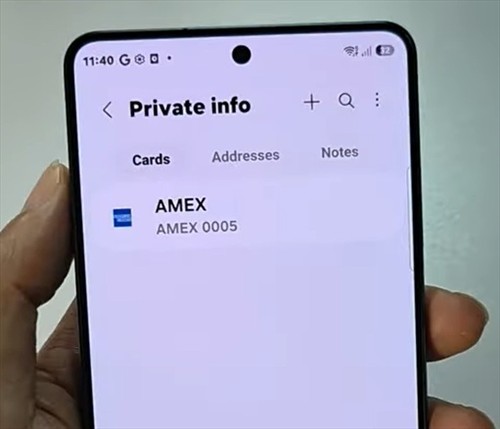
Samsung Pass makes it easy to auto-fill your payment card info when you’re shopping online or filling out forms. Here’s how to add your debit or credit card to Samsung Pass on your Galaxy S26, S26+, or Ultra so it’s ready whenever you need it.
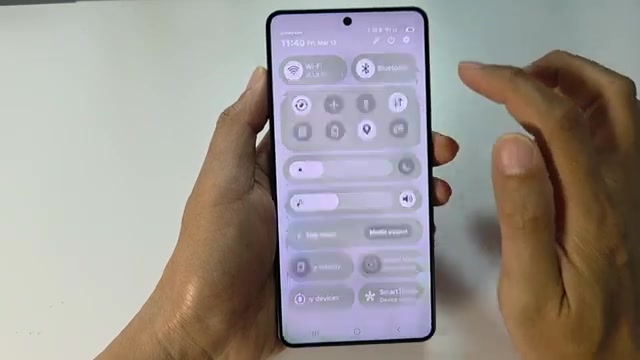
- From your home screen, swipe down from the top and tap the Settings icon.
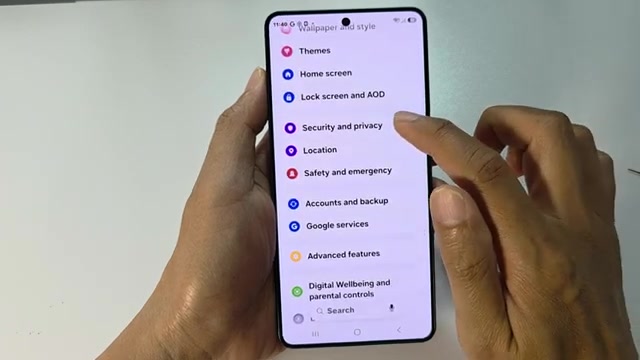
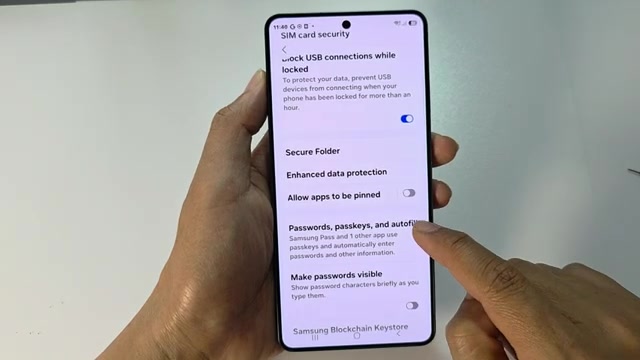
- Scroll down and tap on Security and privacy.
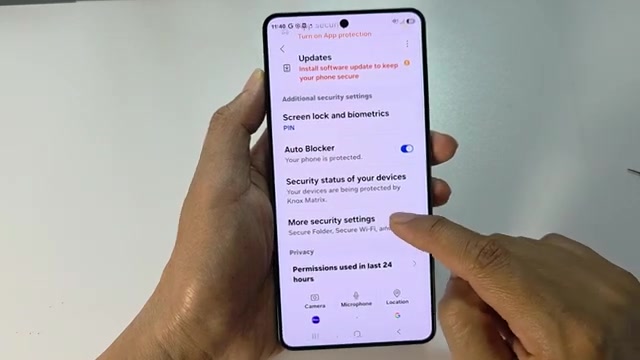
- Scroll down again and tap More security settings.
- Tap on Passwords, passkeys and autofill.
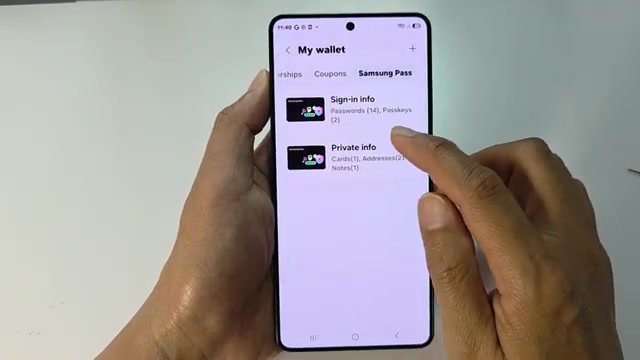
- Tap Samsung Pass. Make sure you’ve already set it up or signed in before continuing.
- Tap on Private info and enter your passcode or PIN when prompted, then tap Continue.
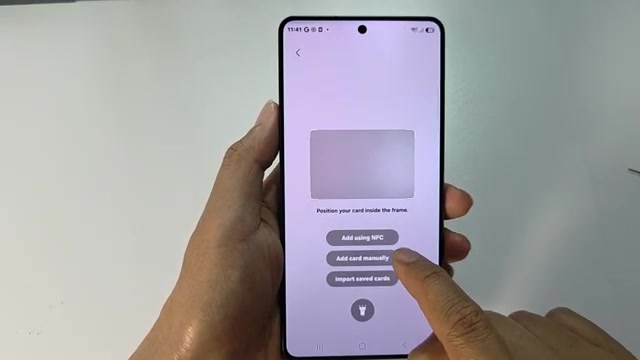
- At the top, select the Cards tab, then tap the Add button.
- Choose how you want to add your card: scan it with your camera, use NFC by tapping the card on your phone’s back, import saved cards, or enter the details manually.
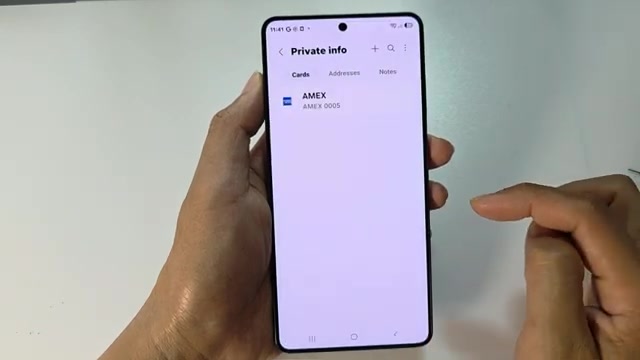
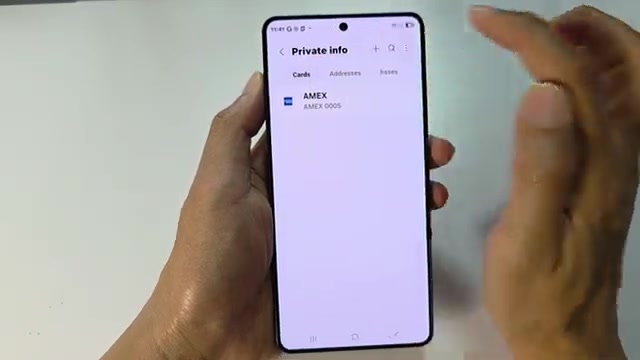
Once your card is saved, Samsung Pass will automatically suggest it whenever you need to enter payment info on your phone.