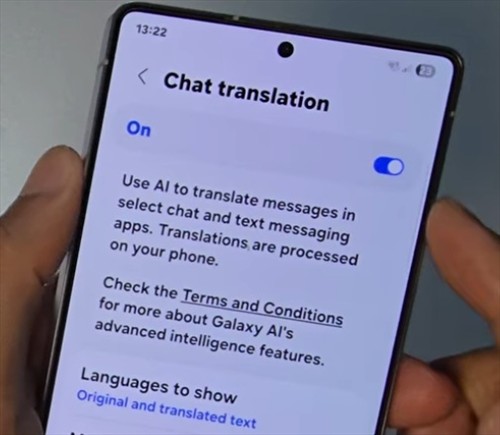
The Samsung Galaxy S25 comes with a built-in chat translation feature powered by Galaxy AI that can automatically translate your messages in real-time.
Here’s how to turn it on or off and customize which apps can use it.
- Tap the home button to return to your home screen.
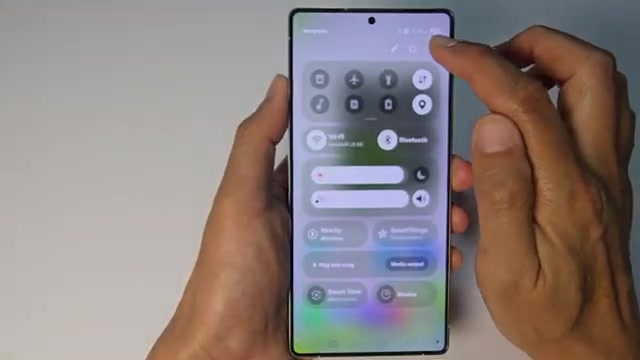
- Swipe down from the top of the screen and tap the settings icon.
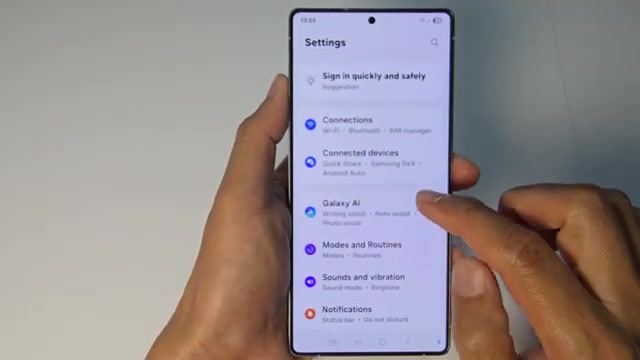
- Scroll down in the settings menu and tap on Galaxy AI.
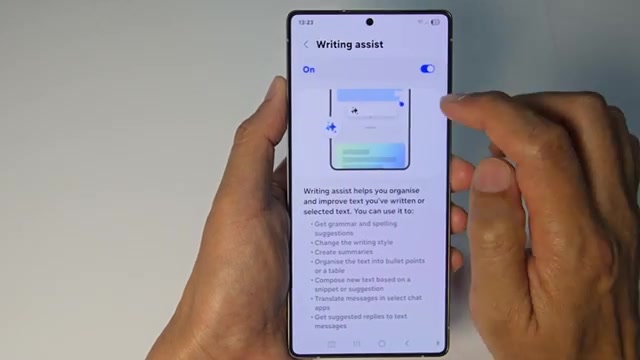
- Tap on Writing Assist.
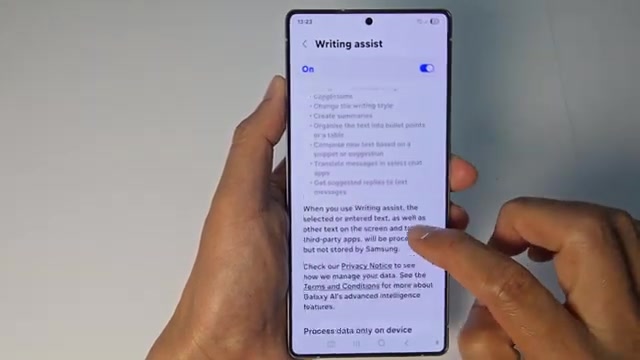
- Make sure the Writing Assist toggle is switched on.
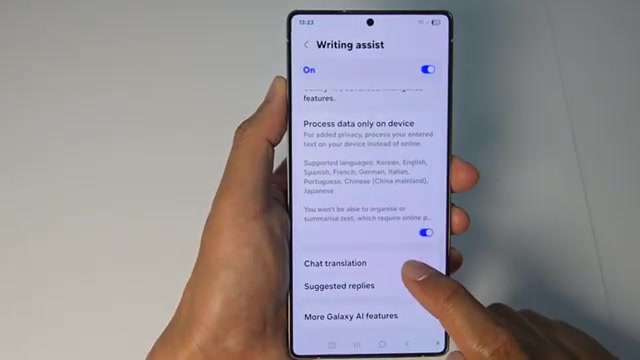
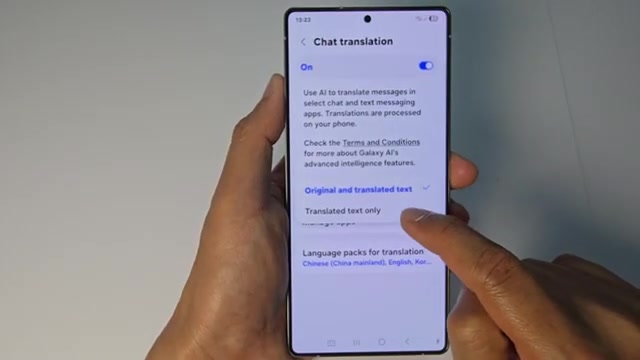
- Scroll down and tap on Chat Translation.
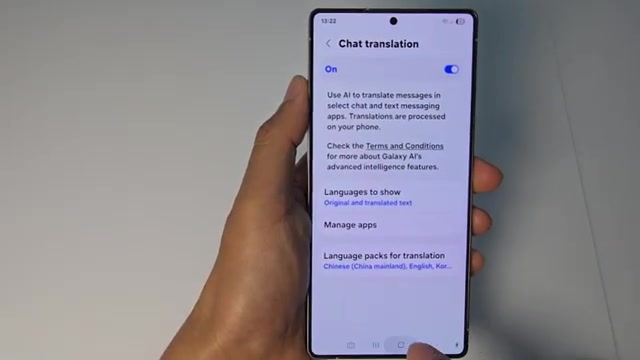
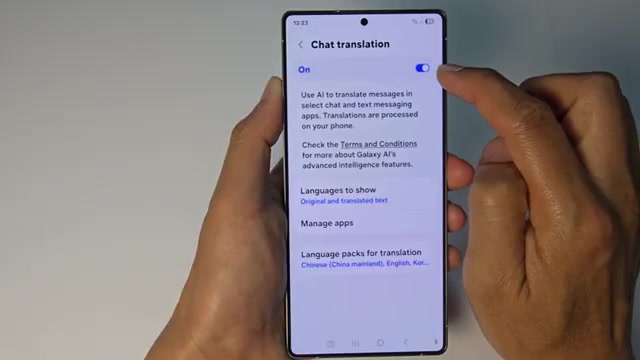
- Tap the toggle button to turn chat translation on.
- Choose how you want languages displayed — you can show both original and translated text, or translated text only.
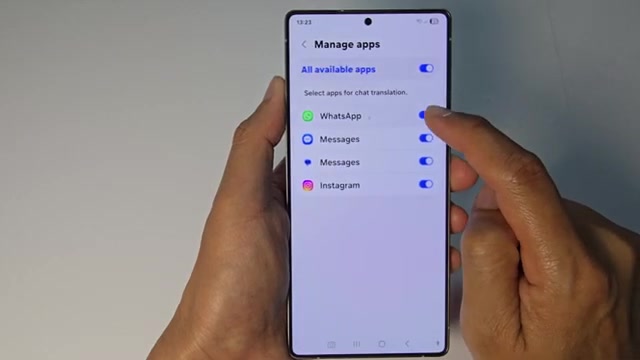
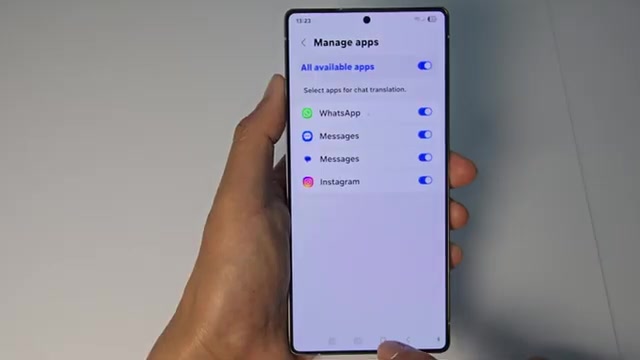
- Select which apps can use chat translation by enabling or disabling them from the list.
- Tap the home button to return to your home screen.
- Open a messaging app and you’ll see a translate button appear. You can also tap the AI button to access chat translation and choose your language.
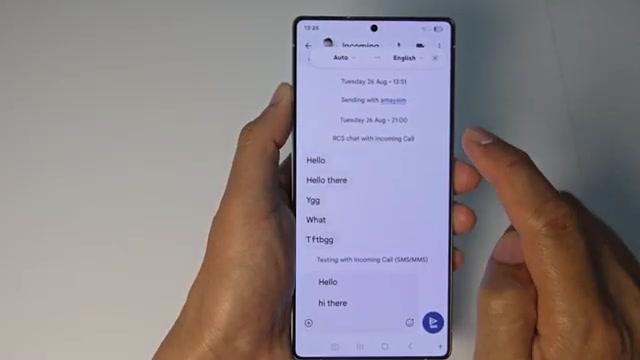
Once enabled, the chat translation feature will work across all the apps you’ve selected, making it easy to communicate in different languages without switching between translator apps.