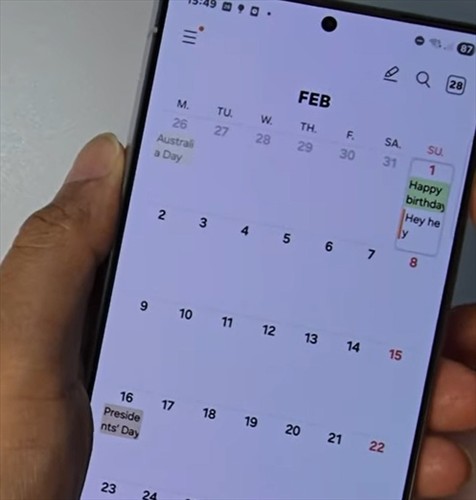
The Samsung Galaxy S25 calendar app gives you plenty of ways to view your schedule, whether you prefer a big-picture monthly overview or a detailed hourly breakdown.
You can also customize which calendars show up and even change what day your week starts on. Here’s how to set everything up the way you want it.
- Open the Calendar app on your Samsung Galaxy S25.
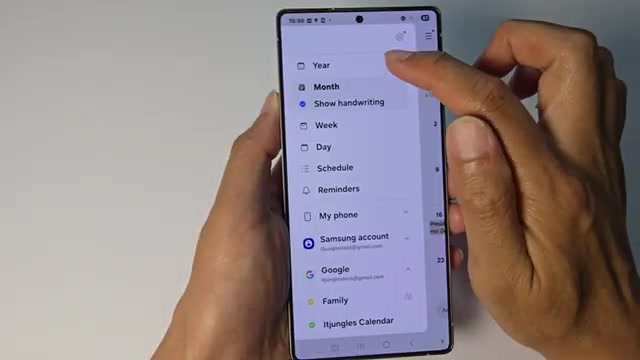
- Tap on the menu button to see your view options.
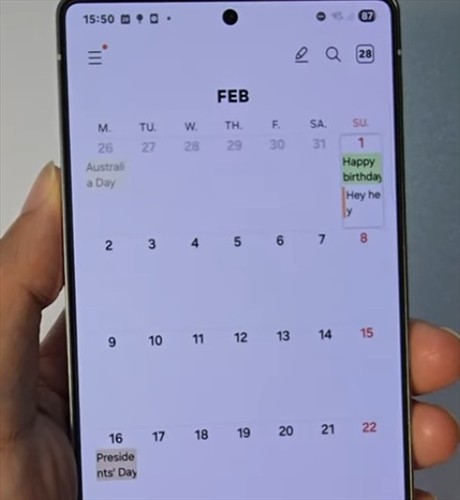
- Choose your preferred calendar view: yearly, monthly, week, day, schedule, or reminders. Each gives you a different layout, from a full month grid to a detailed hourly timeline.
- If you’re in monthly view, swipe up on the calendar to see a list of all events for the selected day at the bottom of the screen.
- To change which day your week starts on, open the menu again and tap Settings.
- Tap ‘First day of the week’ and pick Sunday, Monday, Saturday, or your local default.
- To hide calendars you don’t need, go back to the menu and scroll down to find your accounts (Samsung or Google).
- Tap on an account, then tap on any calendar name to check or uncheck it. Unchecking a calendar hides it from your view.





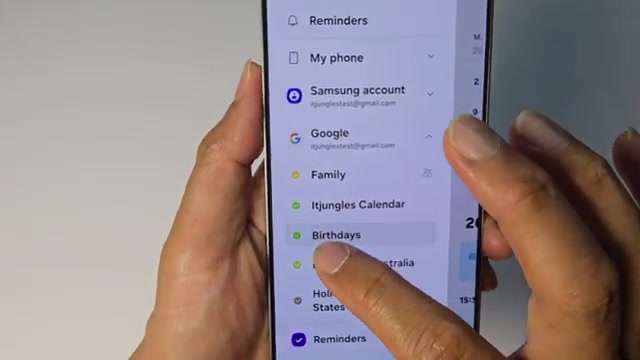
Hiding calendars you don’t actively use is a quick way to declutter your view and focus on what actually matters to you.