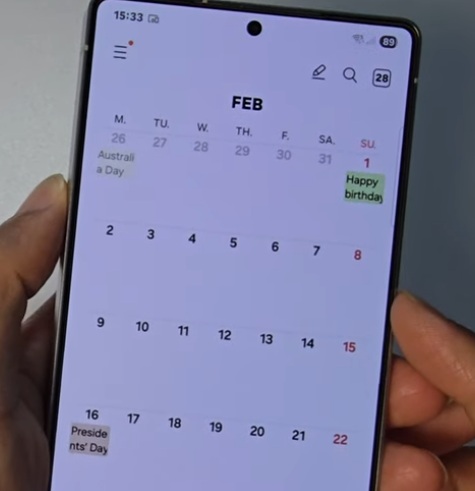
If you’re missing important events because your Samsung Galaxy S25 isn’t showing calendar notifications, don’t worry—it’s usually a quick fix.
The problem is almost always related to notification settings that got turned off or set to silent. Let’s walk through how to get those alerts working again.
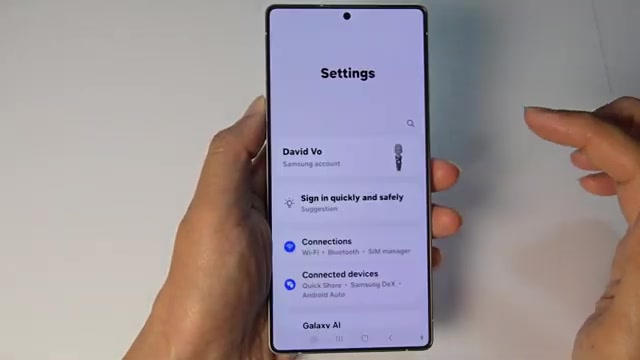
- Tap the home button to go back to your home screen, then swipe down from the top and tap the settings icon.
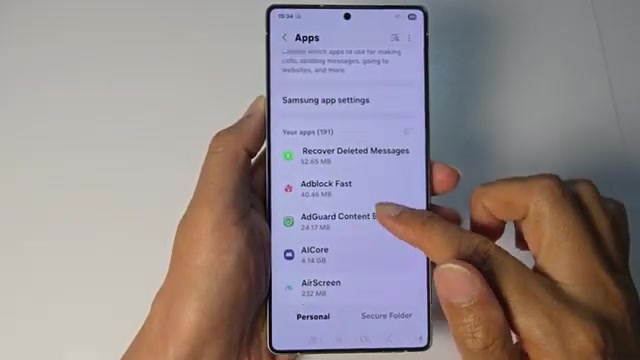
- Scroll down and tap on Apps.
- Scroll down until you find Calendar and tap on it.
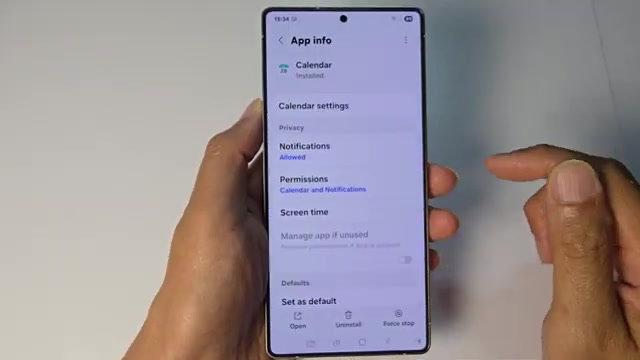
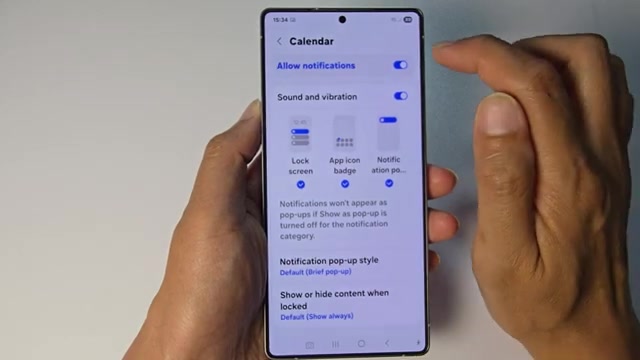
- Open Samsung Calendar, then tap on Notifications.
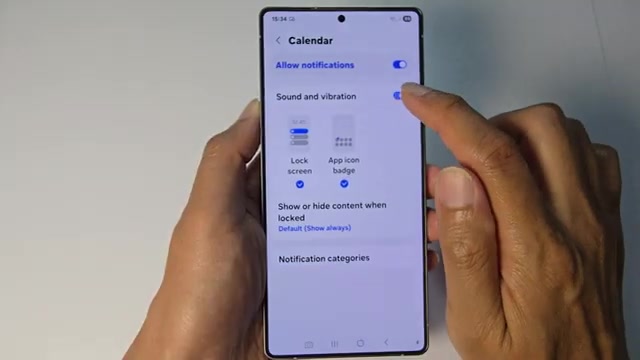
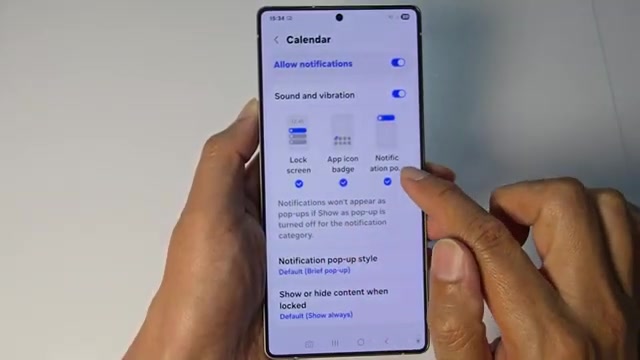
- Make sure ‘Allow notifications’ is turned on at the top.
- Enable ‘Sounds and vibration’ and ‘Show on lock screen’ so you’ll actually see and hear the alerts.
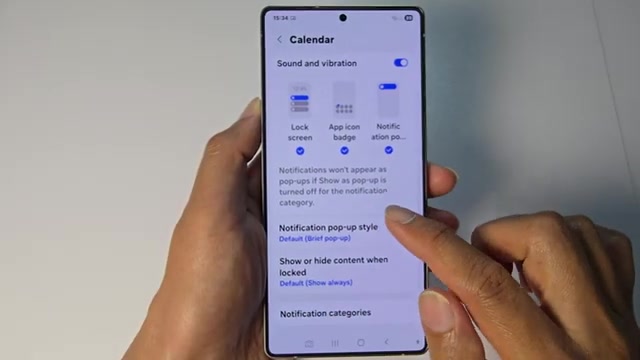
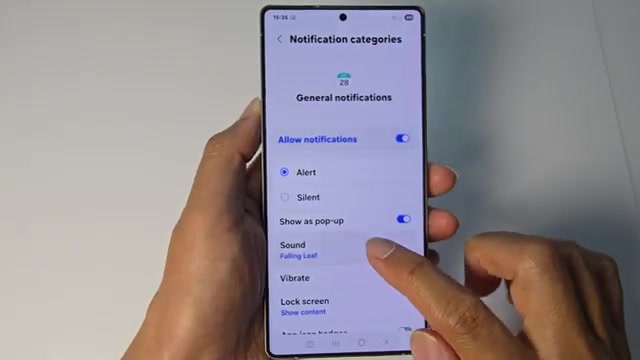
- If you want pop-up notifications to appear while using your phone, turn that option on too.
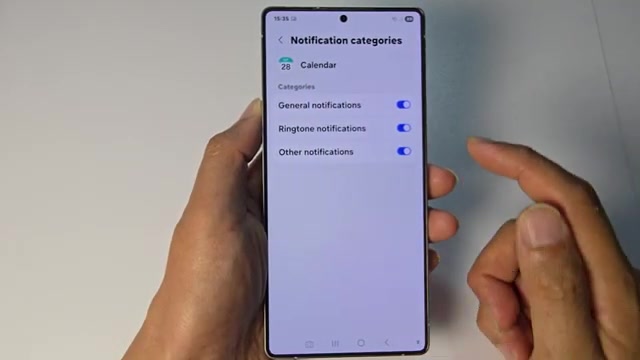
- Tap on ‘Notification categories’ to check the specific types of alerts.
- Make sure both ‘General notifications’ and ‘Ringtone notifications’ are turned on.
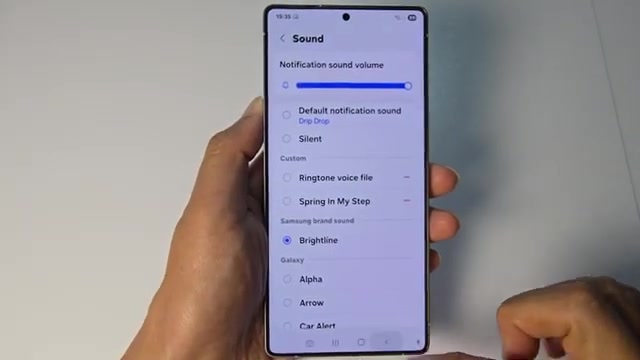
- Check that the sound isn’t set to silent—tap on it and choose a ringtone you can actually hear.
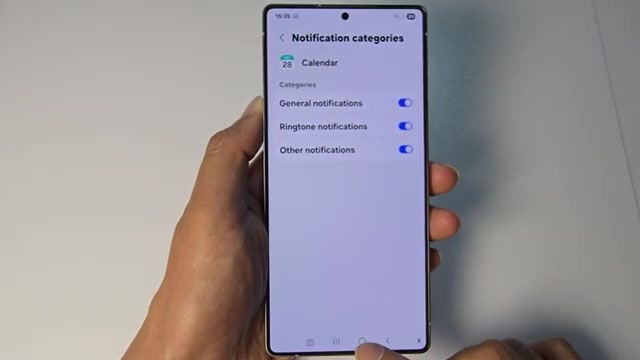
- Go back and check the other notification categories, setting them to ‘Alert’ instead of silent.
After adjusting these settings, create a test event to make sure the notifications are working properly. If you’re still having issues, try restarting your phone.