If you’ve been tweaking accessibility options on your Samsung Galaxy S26 and want to start fresh, resetting them back to default is straightforward. This guide will walk you through the process step by step.
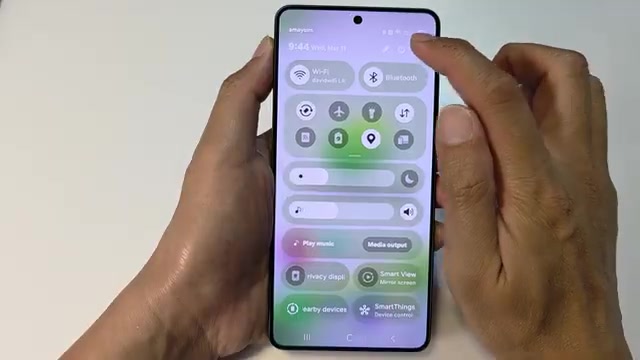
- From your home screen, swipe down from the top of the screen to open the notification panel.
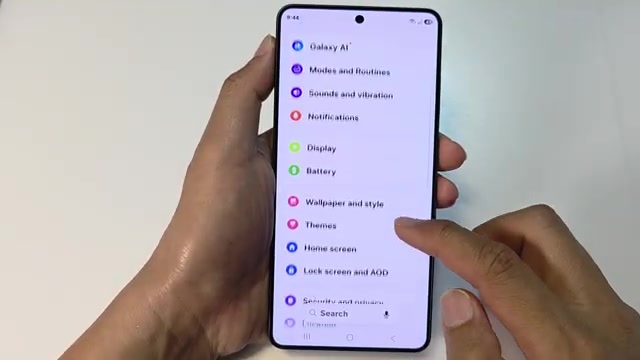
- Tap the settings icon (the gear symbol) to open Settings.
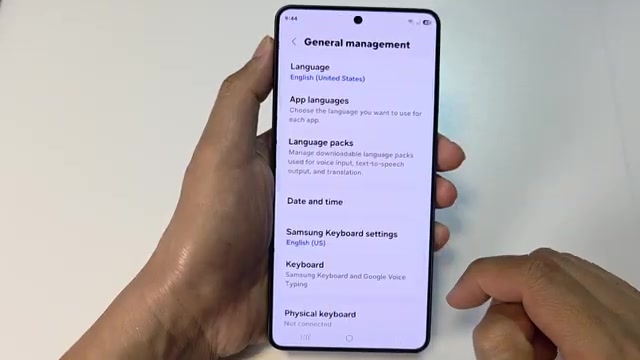
- Scroll down in Settings and tap on ‘General management’.
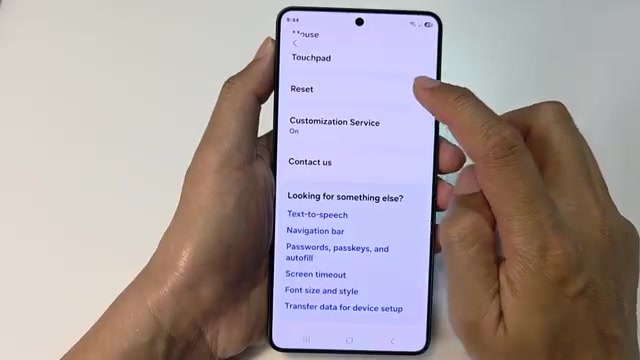
- Scroll down again and tap on ‘Reset’.
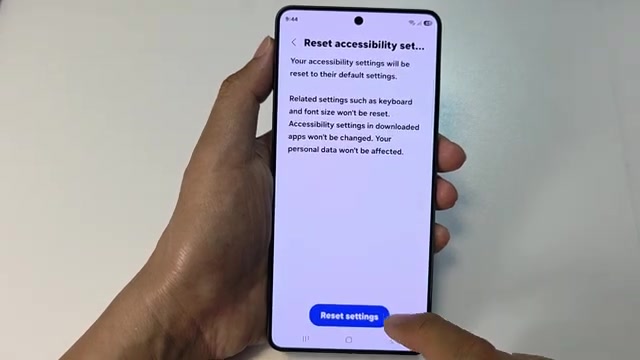
- Scroll down one more time and tap on ‘Reset accessibility settings’.
- Tap ‘Reset settings’ to confirm.
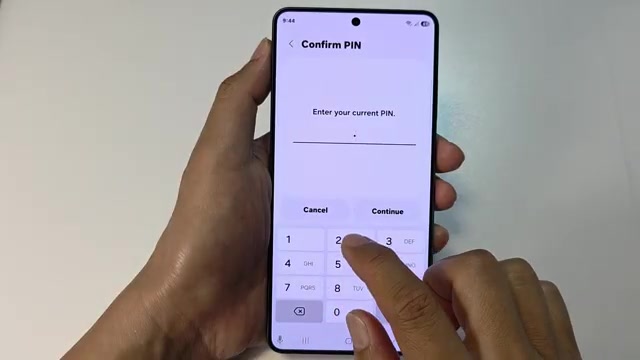
- Enter your PIN when prompted.
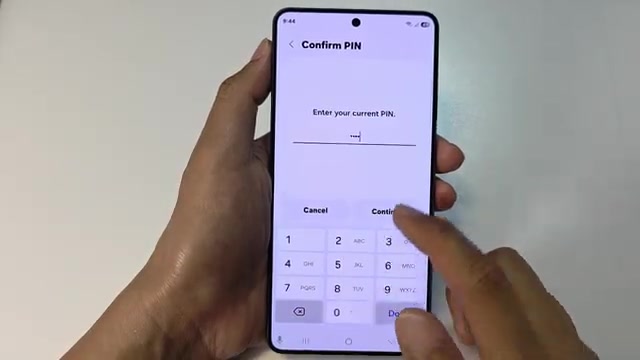
- Tap ‘Continue’ after entering your PIN.
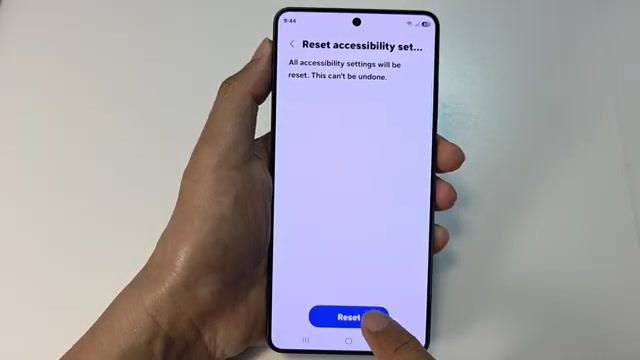
- Tap ‘Reset’ one final time to complete the process.
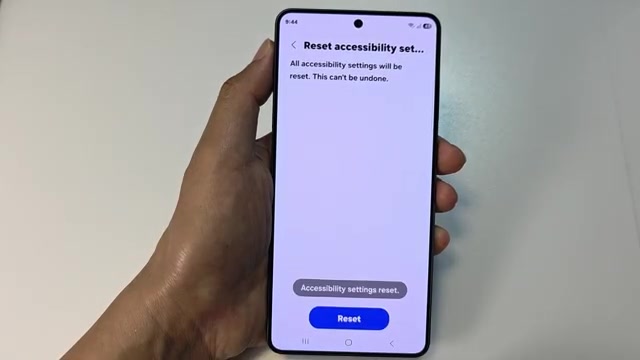
That’s it! Your accessibility settings are now back to their original defaults. You can start customizing them again from scratch if needed.