Need to wipe your Samsung Galaxy S26 clean? A factory reset will erase everything on your phone and restore it to its original settings. Just remember to back up any important data first, because once you reset, there’s no going back.
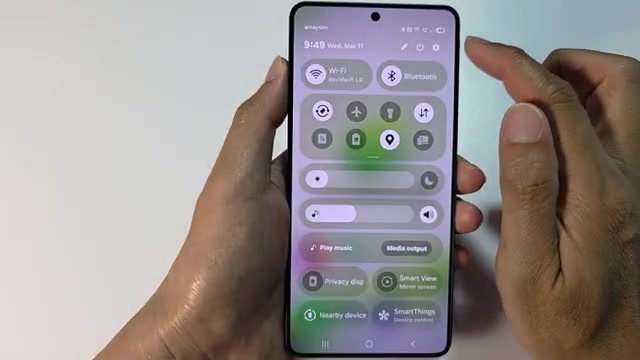
- Swipe down from the top of your screen and tap the settings icon.
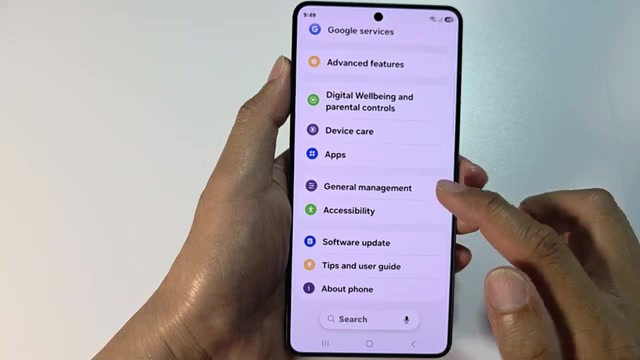
- Scroll down in the settings menu and tap on General management.
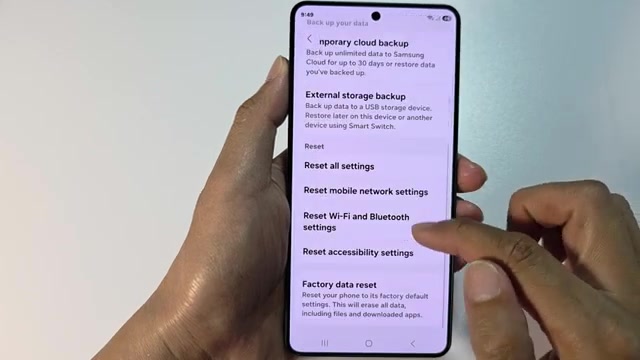
- Scroll down again and tap Reset.
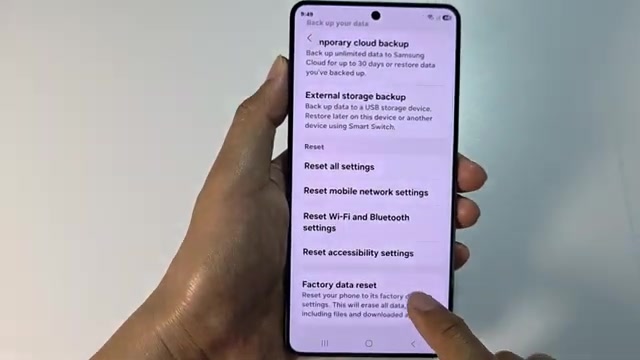
- Tap Factory data reset.
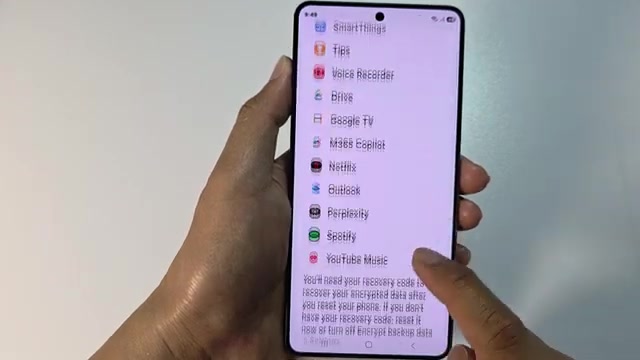
- Scroll down and tap the Reset button.
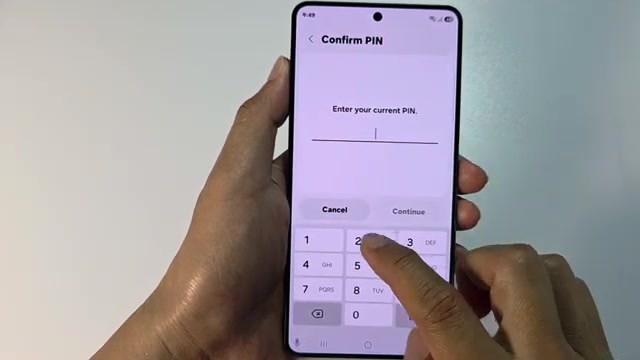
- Enter your current PIN and tap Continue.
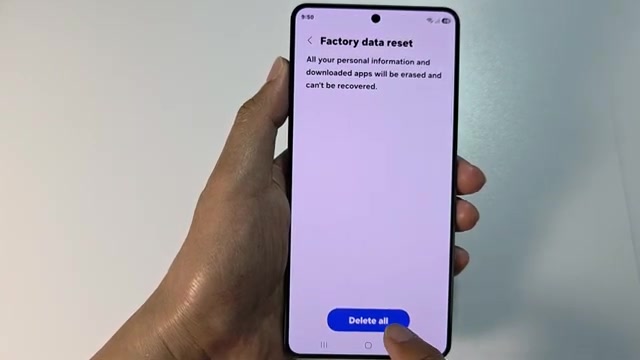
- Review the warning that all your data will be erased, then tap Delete all to begin the reset.
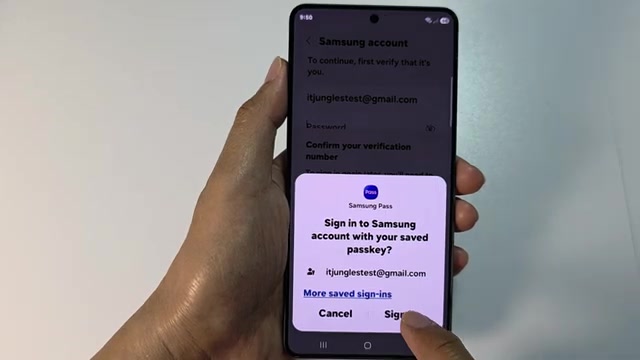
- Tap Confirm to finalize the process.
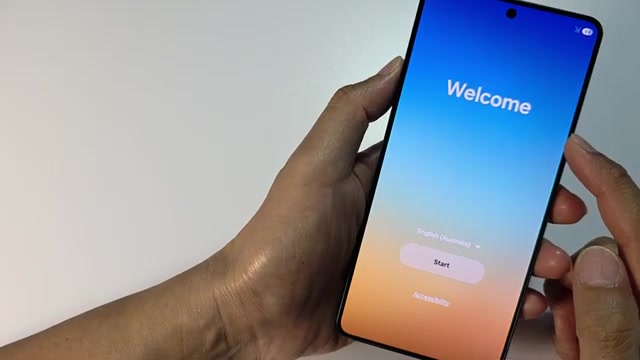
- Wait for the reset to complete. Your phone will restart and take you to the welcome screen.
Make absolutely sure you’ve backed up everything you need before doing this — photos, contacts, everything will be gone once the reset finishes.