Calendar alarms on your Samsung Galaxy S25 are different from regular clock alarms—they’re tied to specific events and remind you before they start. You can set them to alert you minutes, hours, or even days ahead, and customize whether they make a sound, vibrate, or just pop up on screen.
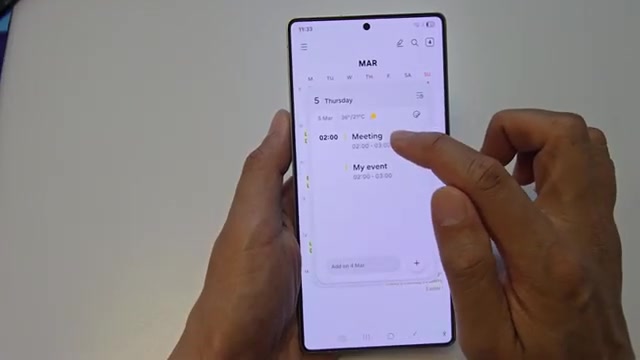
- Open your Calendar app and tap on an existing event you want to edit
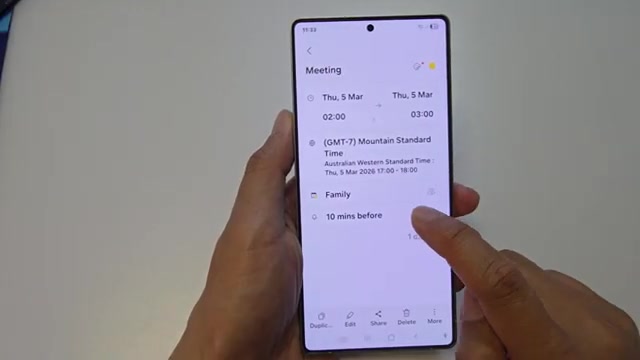
- Scroll down and tap on the event time
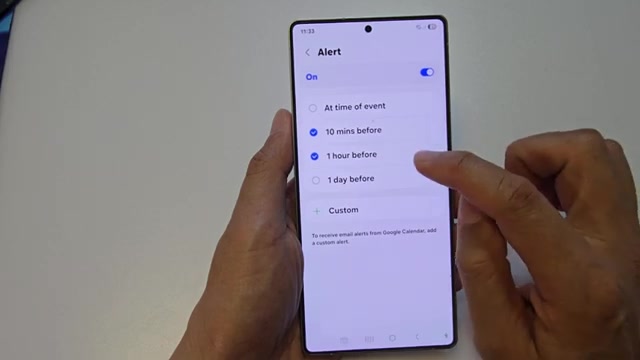
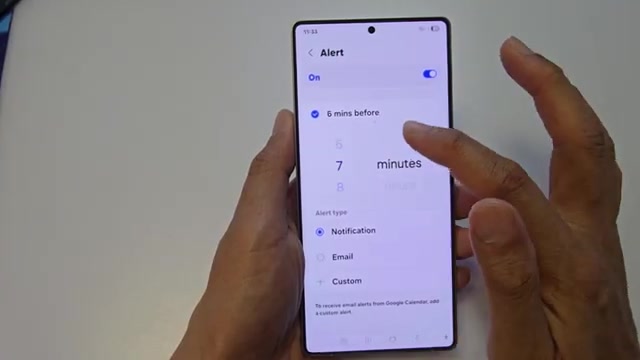
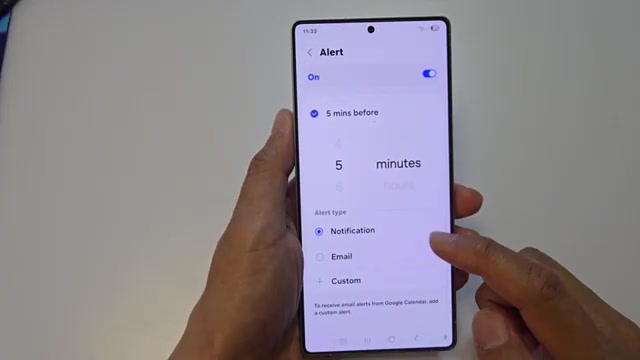
- You’ll see the reminder is set to 10 minutes before by default. Tap on it to change the timing
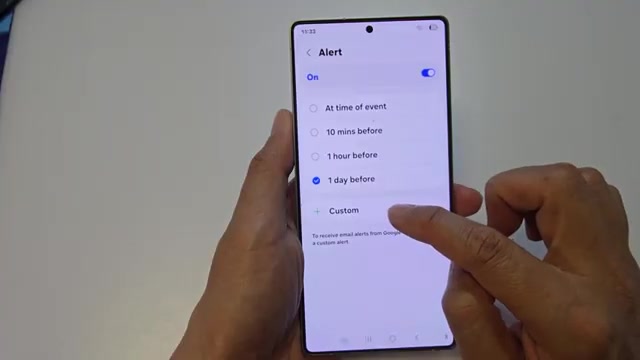
- Choose from the preset options like 10 minutes before, 1 hour before, or 1 day before
- If you need something specific, select the custom option to set your own alert time
- Pick the alert type—you can choose between notifications, email, or a custom alert
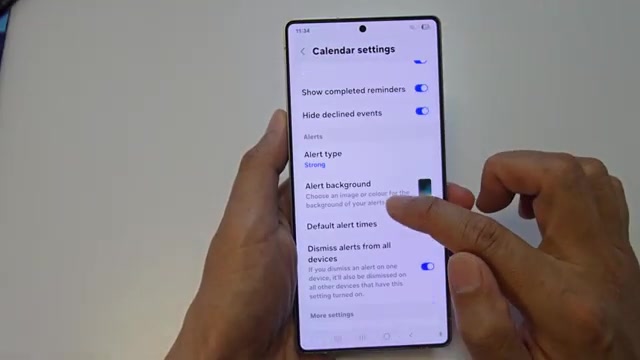
- To change the default reminder time for all new events, open the menu and tap Settings
- Scroll down and look for ‘Default alert times’ to set your preferred reminder timing for all events
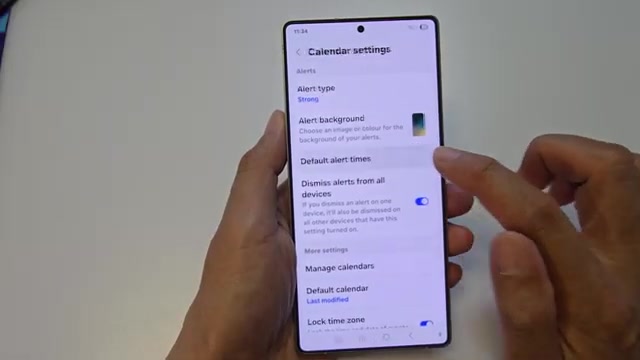
Once you set your default alert time, every new event you create will automatically use that reminder setting, saving you time.