Need to reset all your settings on your Samsung Galaxy S26 or S26 Ultra? This won’t delete your files or apps, but it will reset things like Wi-Fi passwords, Bluetooth connections, and display settings back to their defaults. Here’s how to do it.
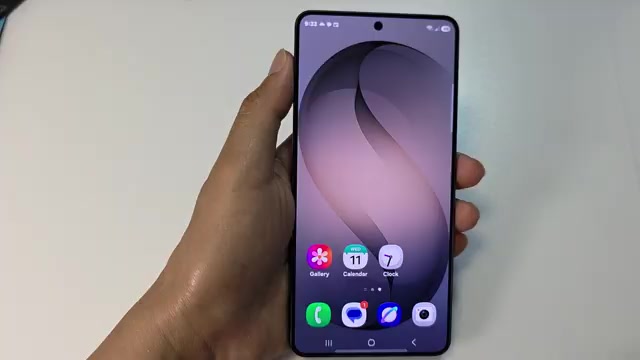
- Tap the home button to get back to your home screen.
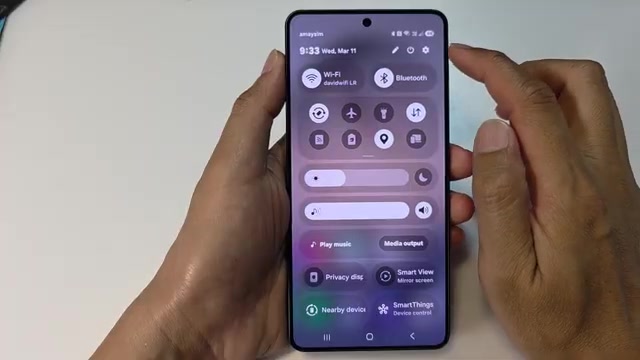
- Swipe down from the top of the screen to open the notification panel.
- Tap the settings icon in the top right.
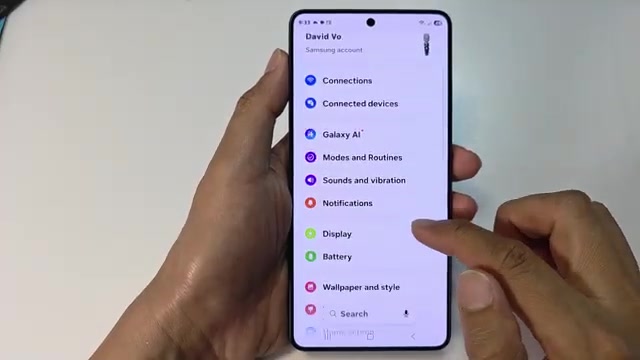
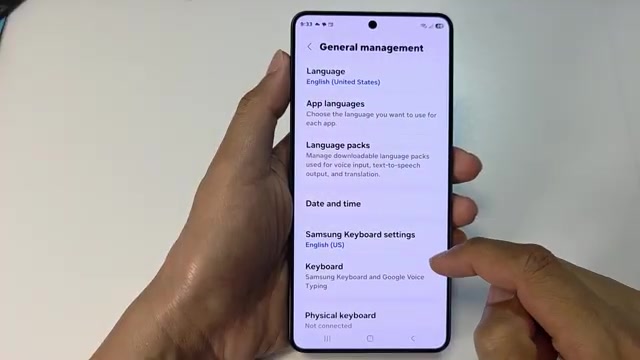
- Scroll down and tap on General management.
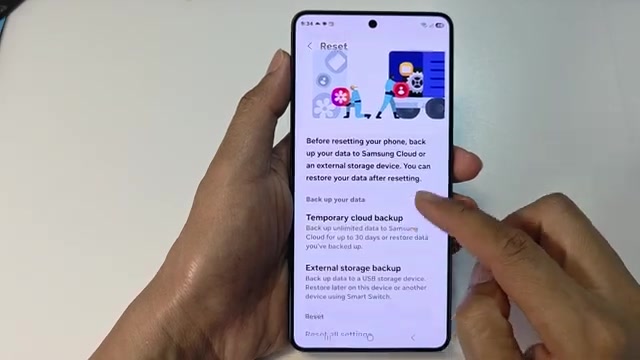
- Scroll to the bottom and tap Reset.
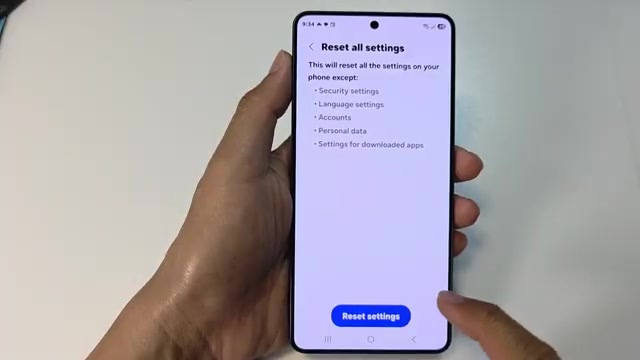
- Scroll down and tap Reset all settings.
- Tap Reset settings to confirm.
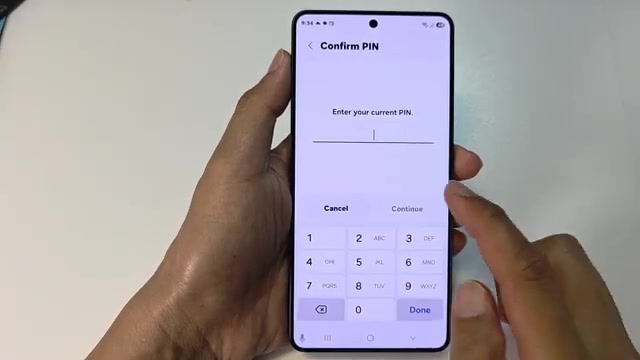
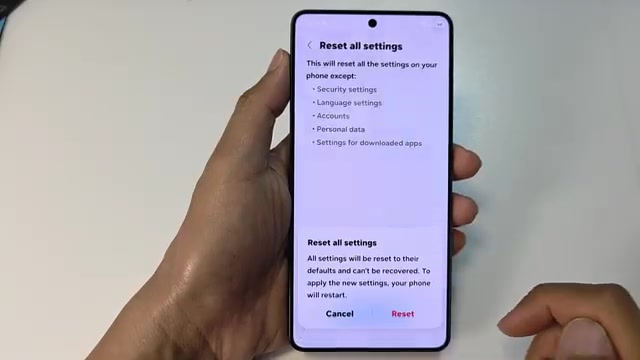
- Enter your PIN and tap Continue, then tap the Reset button.
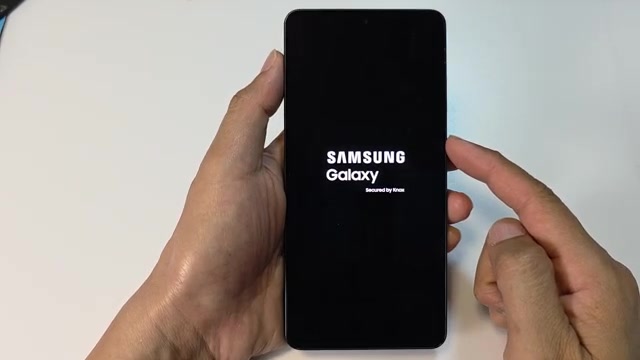
- Wait for your phone to reboot — you’ll see the Samsung logo appear.
- Once it restarts, reconnect to your Wi-Fi and any Bluetooth devices you use.
Remember, your photos, apps, and files are still there — you just need to set up your connections again.