Switching from iPhone to Samsung? The good news is that transferring your data is pretty straightforward. This guide will walk you through setting up your new Galaxy S26, S26 Plus, or S26 Ultra and moving everything from your iPhone using Samsung’s Smart Switch app.
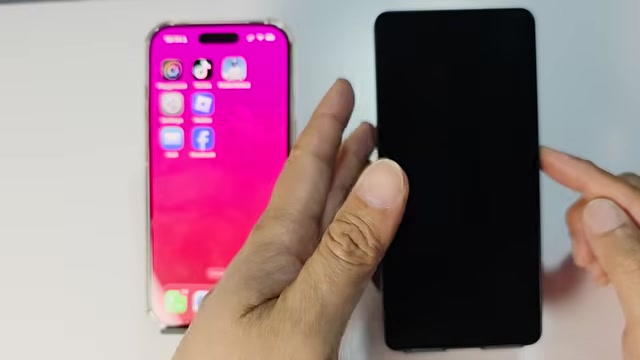
- Press and hold the side button on your Samsung to power it on.
- Select your language or region and tap OK, then tap the Start button.
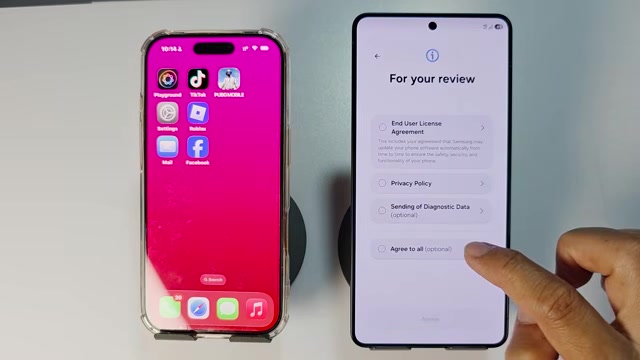
- Tap ‘Agree to all’ to accept the terms. If you want to skip optional items, deselect them before tapping Agree.
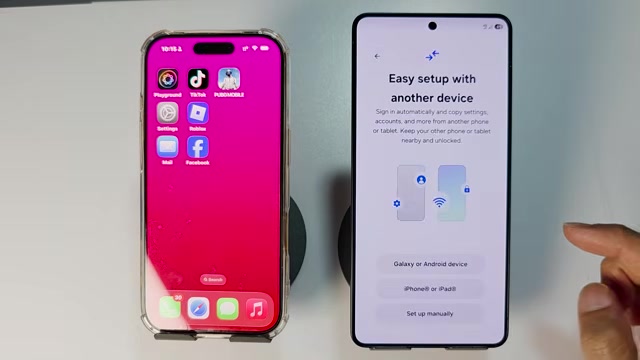
- Tap ‘Setup manually’ to proceed with manual setup.
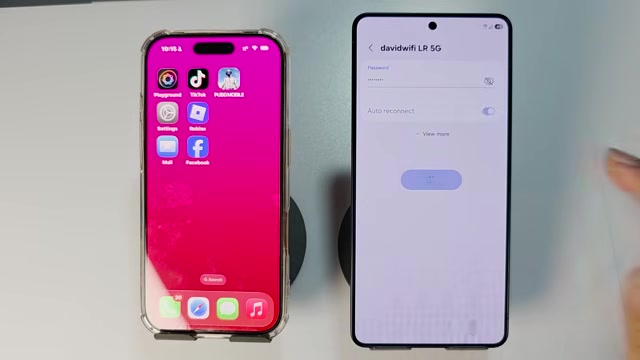
- Select your Wi-Fi network, enter the password, and tap Connect.
- Tap Next, then select ‘Use another device’ and choose iPhone or iPad.
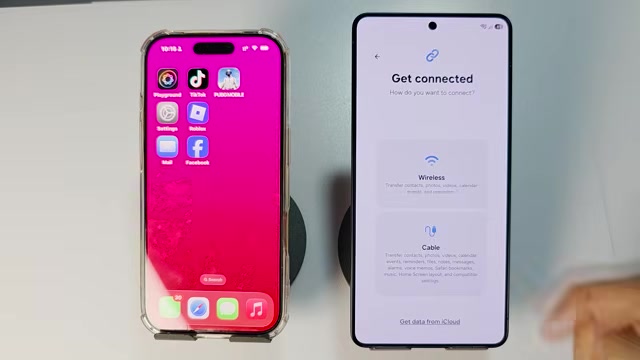
- Choose between wireless or cable transfer. The wireless method is easier since you don’t need any cables.
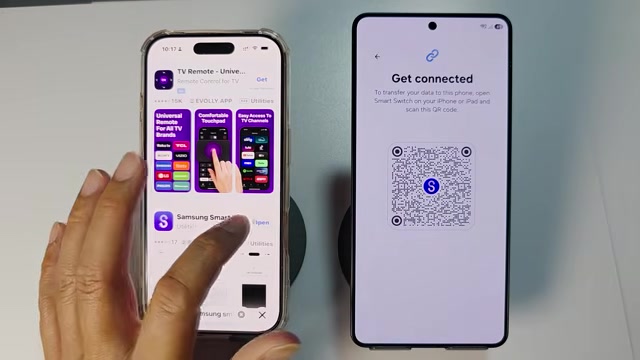
- On your iPhone, open the App Store and search for ‘Samsung Smart Switch’. Download and install the app.
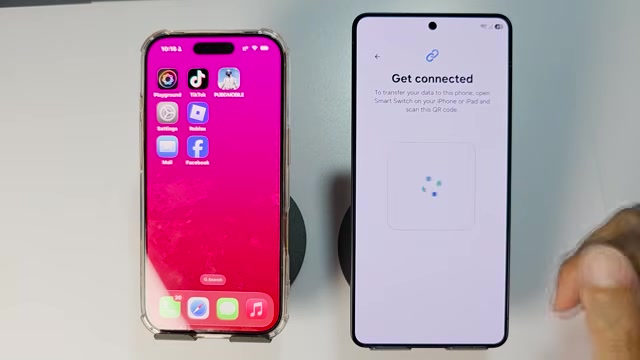
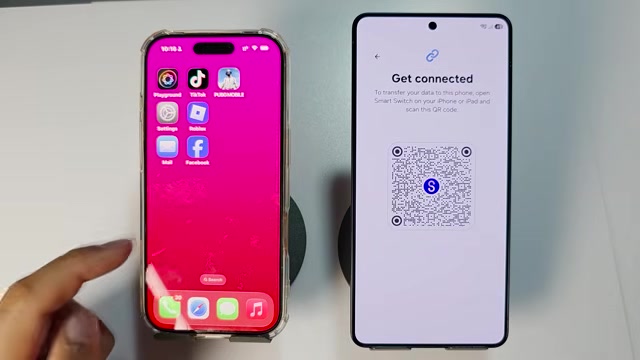
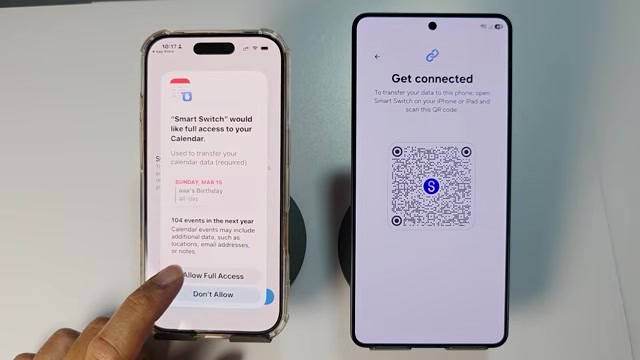
- Open Smart Switch on your iPhone, tap Continue through the prompts, and use your Samsung’s camera to scan the QR code shown on the Samsung screen.
- Choose which contacts and data you want to transfer from your iPhone and follow the remaining prompts to complete the transfer.
The transfer can take anywhere from a few minutes to half an hour depending on how much data you’re moving. Just make sure both phones stay connected to Wi-Fi and keep them close together until it’s done.