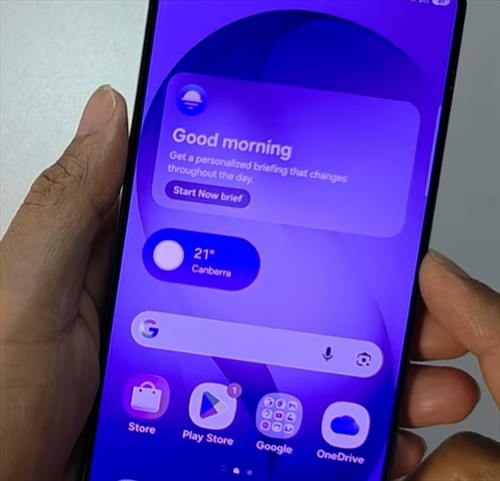
If the colors on your Samsung Galaxy S26 look weird or off, it’s probably because one of the accessibility color settings got turned on. Don’t worry — it’s easy to fix. Here’s how to get your screen colors back to normal.
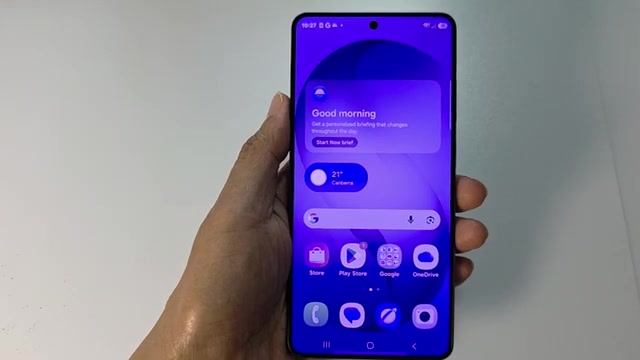
- Tap the home button to get back to your home screen.
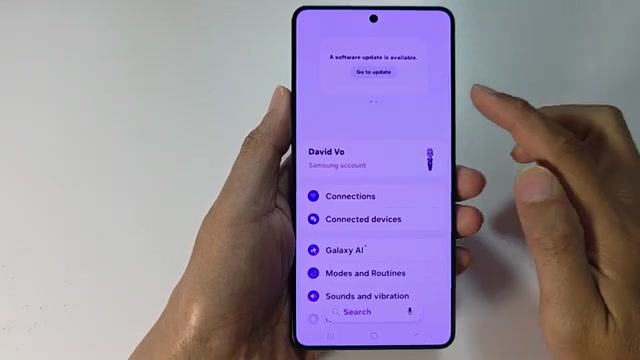
- Swipe down from the top of the screen and tap the settings icon.
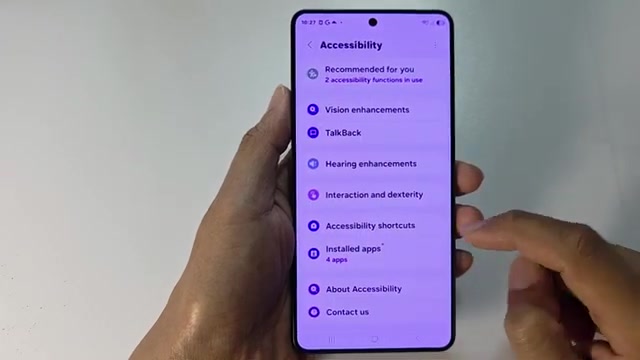
- Scroll down and tap on Accessibility.
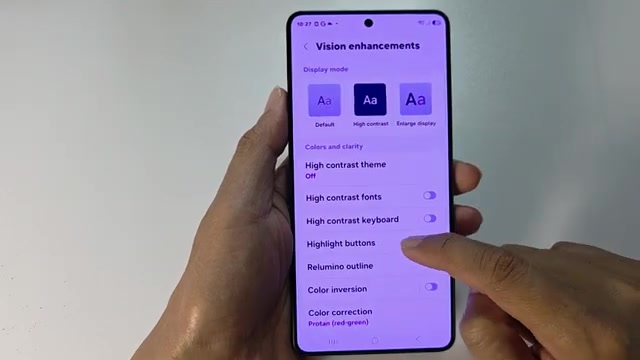
- Scroll down again and tap Vision enhancements.
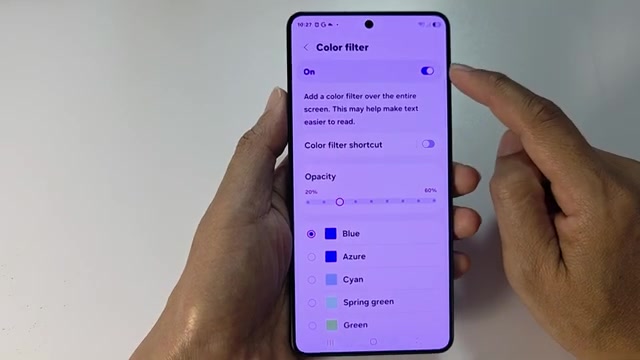
- Tap on Color filter.
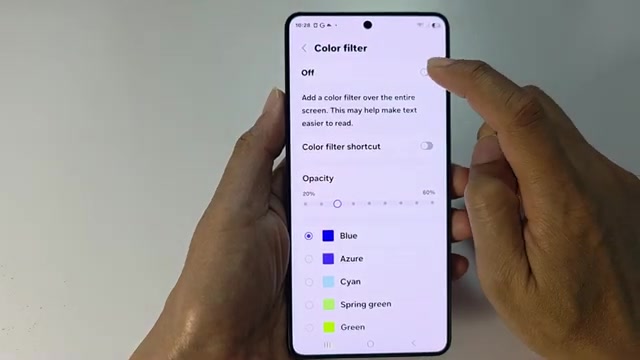
- If the toggle is on, tap it to turn off the color filter. This removes any color tints from your screen.
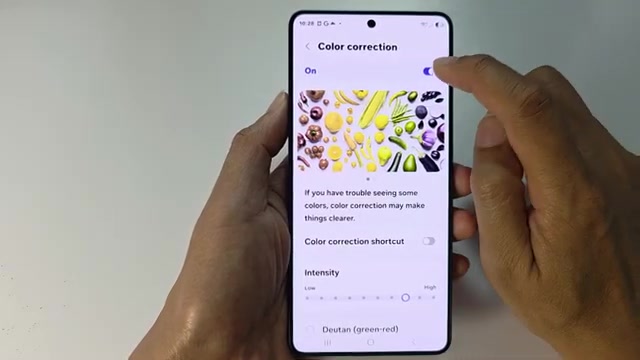
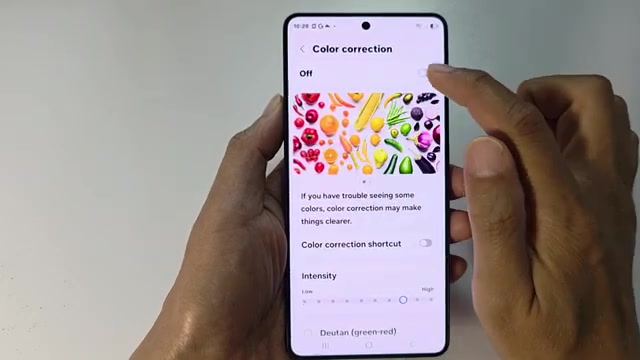
- Go back and tap on Color correction.
- Make sure Color correction is turned off as well.
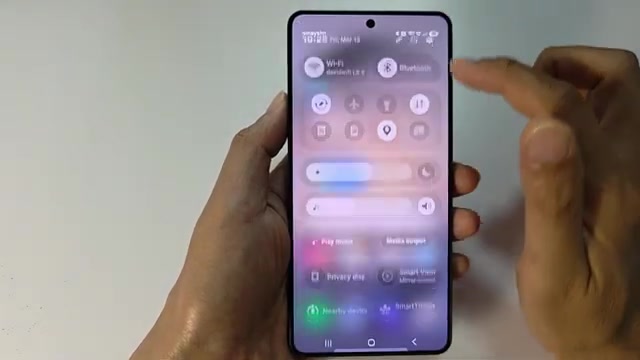
- Finally, swipe down from the top and check if Eye comfort shield is enabled in the quick settings panel. Turn it off if it’s making your screen look too warm or yellow.
If your screen still looks off after trying these steps, you might want to check your display settings and make sure the screen mode is set to Vivid or Natural depending on your preference.