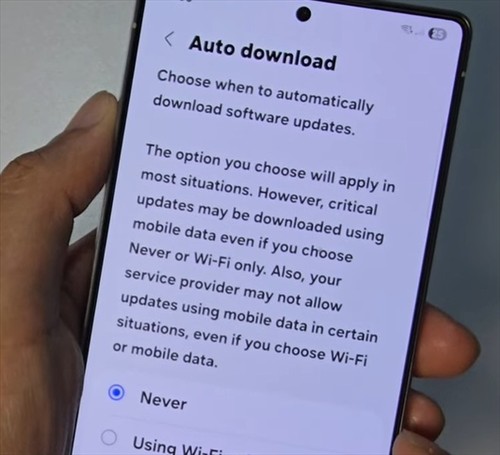
By default, your Galaxy S25 will only download software updates when connected to Wi-Fi. But if you need an update right away and don’t have Wi-Fi access, you can enable downloads over your cellular connection.
Keep in mind this might use a lot of data and could result in extra charges from your carrier.
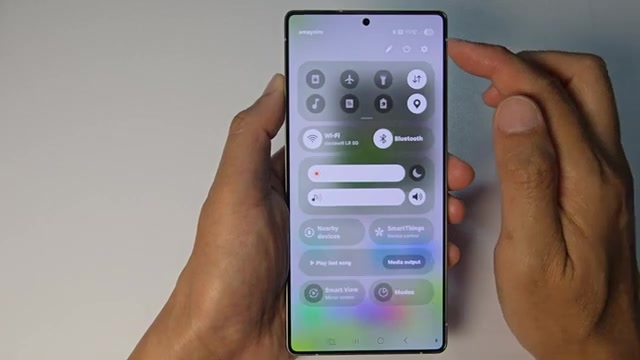
- Swipe down from the top of the screen to open the notification panel.
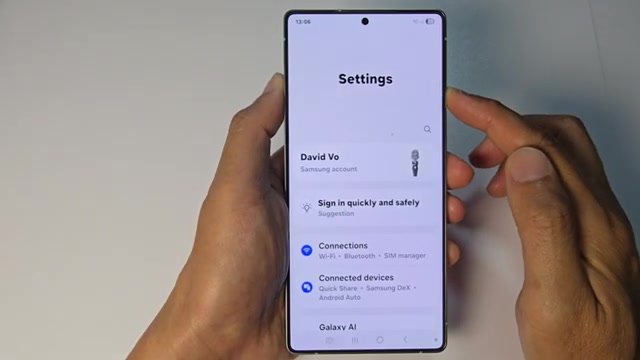
- Tap the settings icon (the gear symbol) in the top right corner.
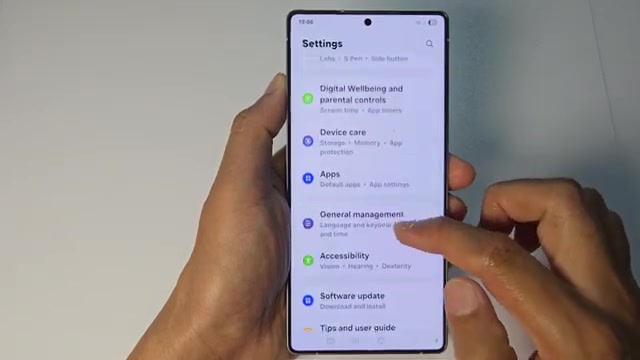
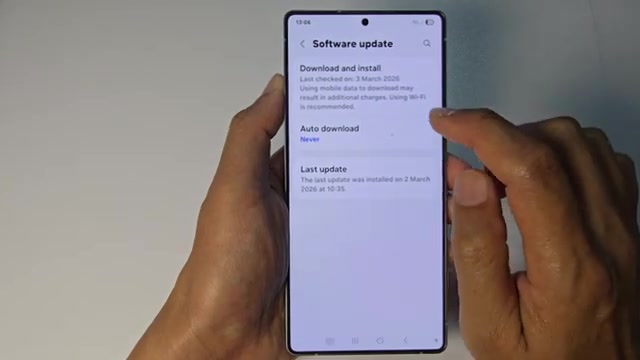
- Scroll down through the settings menu until you see Software update.
- Tap on Software update to open the update settings.
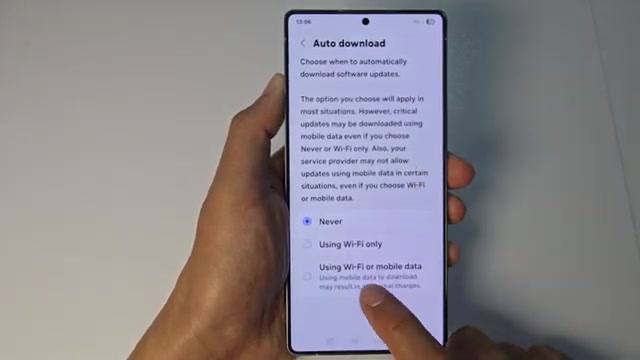
- Tap on Auto download to see your download options.
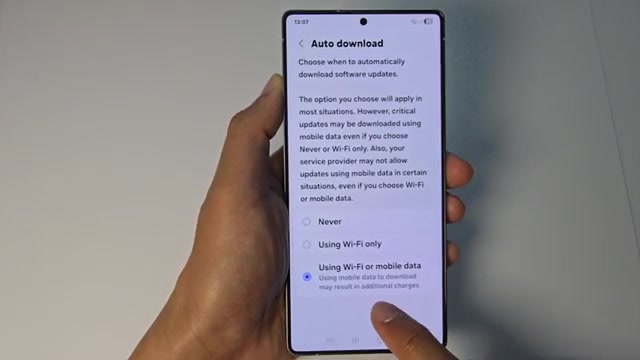
- Select ‘Using Wi-Fi or mobile data’ from the list. You’ll see a warning that this may result in additional charges.
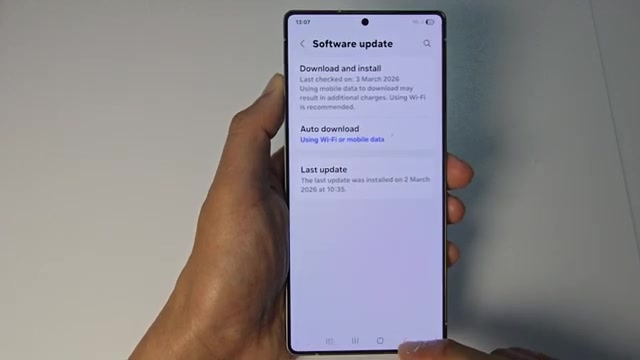
- Tap the back button to return to the previous screen.
- Tap the home button to go back to your home screen.
Remember, software updates can be several gigabytes in size, so only use this option if you have a generous data plan or really need the update immediately.