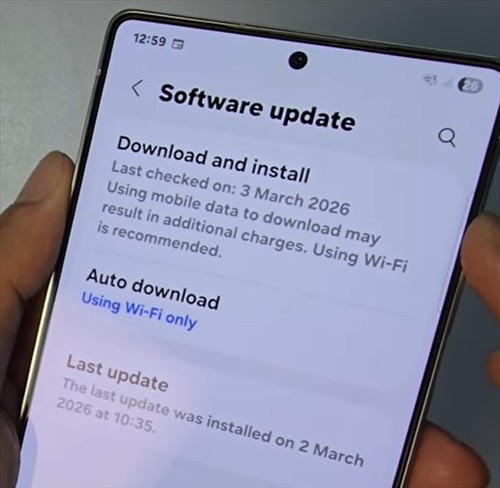
Keeping your Samsung Galaxy S25 updated ensures you have the latest features, security patches, and bug fixes. Here’s how to check if a new Android version or software update is available for your device and install it.
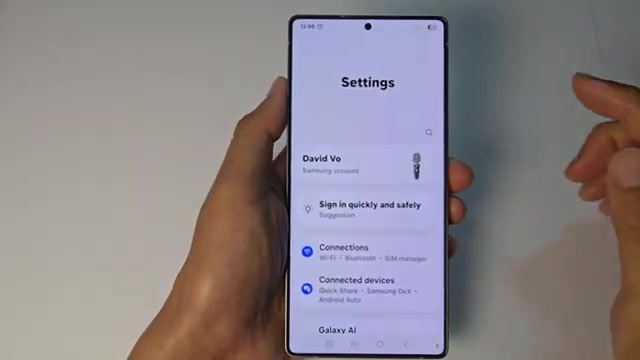
- Swipe down from the top of the screen to open the notification panel.
- Tap the settings icon (gear symbol) to open Settings.
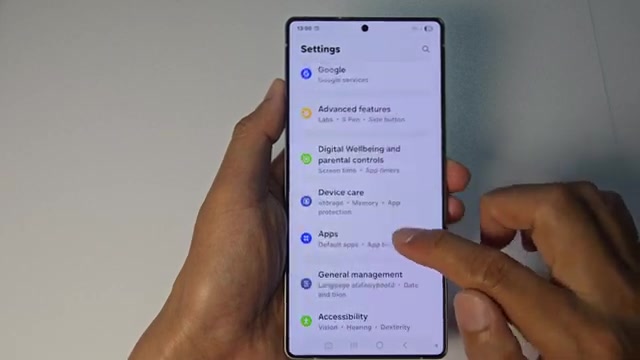
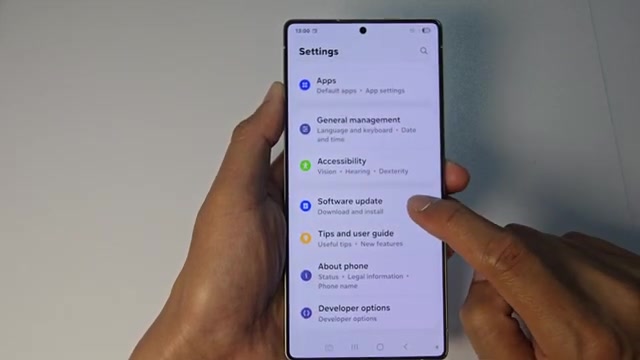
- Scroll down through the settings menu.
- Tap on ‘Software update’.
- Tap ‘Download and install’.
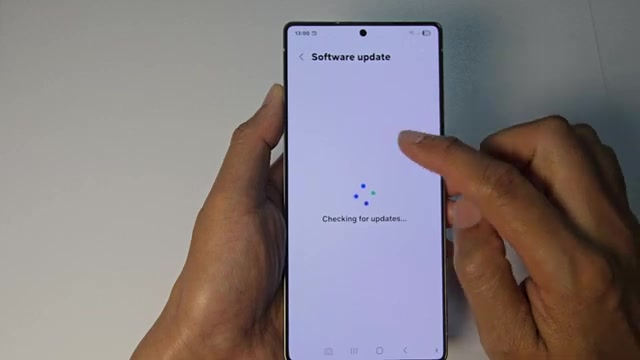
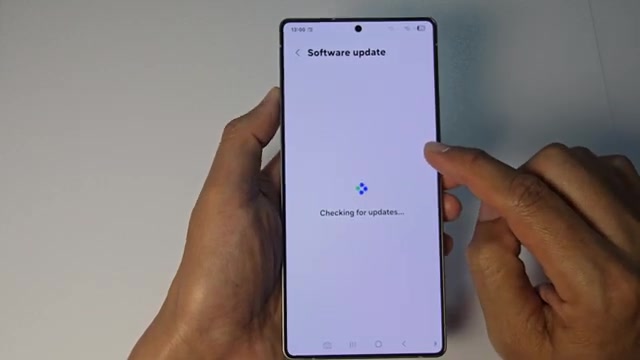
- Wait while your phone checks the update server for available updates.
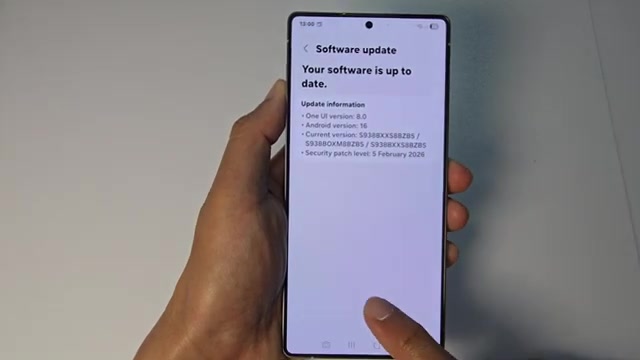
- If an update is available, you’ll see options to either install now or schedule the installation for later. If you’re already on the latest version, it’ll show your current Android version and security patch date.

Your phone will automatically restart during the update process, so make sure you’ve saved any important work before starting the installation.